
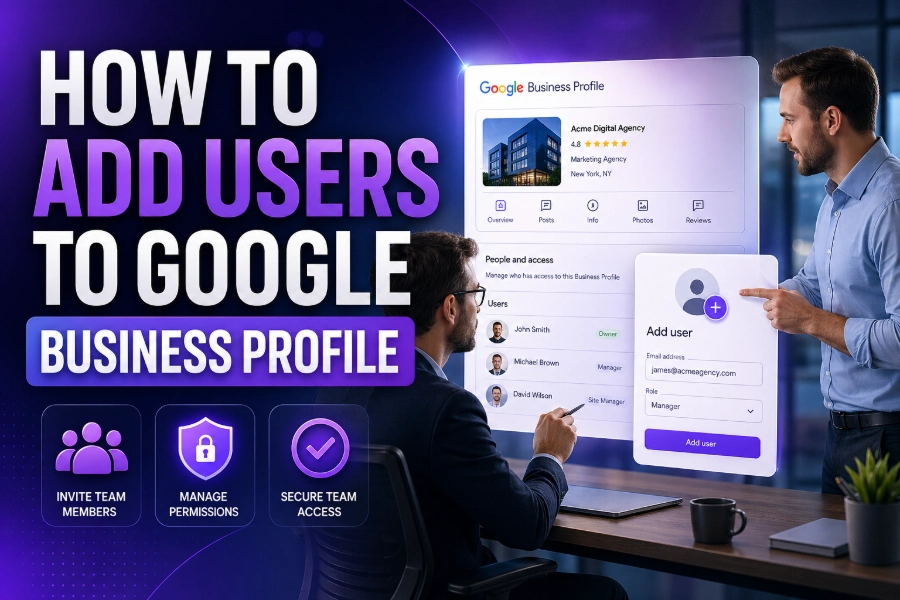
Google Business Profile (GBP) is an essential tool for businesses aiming to boost their online visibility. Understanding how to add users to your Google Business Profile is crucial for efficient management. By adding users, you can delegate tasks such as updating business details, responding to customer reviews, and managing posts, allowing your business to function more smoothly.
In this guide, we will walk you through adding users to your Google Business Profile. We’ll cover user roles, best practices for managing your team, and the steps required to add and remove users effectively. Whether you’re a business owner or an agency managing multiple profiles, this article will provide the information you need to manage your Google Business Profile efficiently.
Steps to Add Users to Google Business Profile
Adding users to your Google Business Profile is simple, but understanding the necessary steps is crucial to ensure you’re delegating access properly. Here’s how you can add a new user:
- Sign in to Google My Business: Go to the Google Business Profile page and sign in using your Google account.
- Choose the Location: If you manage multiple locations, select the business profile you wish to update.
- Go to Users: Navigate to the “Users” section in the left-hand menu.
- Invite a New User: Click “Invite New User,” input the user’s email address, and select the appropriate role for them.
Different Roles in Google Business Profile
When adding users to your Google Business Profile, it’s important to assign roles that match the tasks they will be handling. Here are the three main roles within Google Business Profile:
- Primary Owner: This role holds the highest level of access. The Primary Owner can transfer ownership, edit all settings, and add or remove other users.
- Owner: Owners have full control over the profile and can manage users, edit profile details, and respond to reviews. However, they cannot transfer the Primary Owner role.
- Manager: Managers can update business details, respond to customer reviews, and post updates, but they cannot modify user access or change ownership.
Assigning the right roles is crucial for security and efficiency. Ensure that each user’s role aligns with their responsibilities to avoid unnecessary access.
How to Remove or Transfer Ownership
Sometimes, you may need to transfer ownership or remove a user from your Google Business Profile. The process of transferring ownership is simple:
- Select the User: Go to the “Users” section and choose the user you wish to make the new primary owner.
- Transfer Ownership: Click “Make Primary Owner” to transfer ownership.
- Remove Users: To remove a user, select their name and click “Remove.”
Why Adding Users is Crucial for Businesses
Adding users to your Google Business Profile is a fundamental step for any business aiming to maintain an up-to-date, active online presence. It allows different team members to handle specific tasks, ensuring that your profile is regularly updated with accurate information and that customer interactions are managed promptly.
Furthermore, assigning roles enables collaboration, reduces workloads, and ensures that your Google Business Profile is always in good hands, whether you’re responding to reviews, updating hours, or posting promotions.
Best Practices for Managing Users on Google Business Profile
Managing users on Google Business Profile involves more than just adding them. Here are some best practices to follow:
- Assign Roles Based on Responsibilities: Always assign users roles that align with their job responsibilities. For instance, someone handling customer interactions should have the Manager role, while the profile owner should retain full control.
- Limit Access Where Necessary: Grant access only to the areas of the profile a user needs to manage. For example, if they don’t need access to financial details, avoid giving them an Owner or Primary Owner role.
- Review Users Periodically: Regularly check and update your user list to ensure no former employees or unnecessary roles remain active on the account.
You can explore tips like how to duplicate a page in WordPress to manage other aspects of your online presence efficiently.
Monitoring User Activity on Google Business Profile
Once users are added to your Google Business Profile, it’s essential to monitor their activity. Google allows you to track which users make specific changes, such as editing business hours or responding to reviews. This way, you can spot any inconsistencies or unauthorized actions before they affect your profile’s performance.
Regular monitoring also ensures that updates are consistent across your profile, which can positively impact your search engine rankings.
Common Issues When Adding Users and How to Resolve Them
Sometimes, you might encounter issues when adding users to your Google Business Profile. Here are some common problems and how to solve them:
- Invite Not Received: Ensure that the email address is correct, and check if the invite has gone into the spam folder.
- Permissions Issues: If users can’t access specific parts of the profile, check if their role needs adjustment.
- Expired Invites: Invites sent via email may expire, so be sure to resend them if necessary.
Adding Users for Agencies Managing Multiple Clients
If you’re managing multiple Google Business Profiles for clients, adding users to each profile is even more critical. As an agency, assigning roles to different team members helps streamline the management process and ensures that every aspect of your clients’ profiles is handled by the appropriate person.
With Google Business Profile, it’s easy to delegate tasks to your team and provide a more personalized experience for each client. Proper delegation can lead to a more efficient and organized management strategy.
Conclusion
In conclusion, adding users to your Google Business Profile is an essential step in managing your online presence. With the right roles and permissions in place, you can delegate tasks, streamline management, and maintain an up-to-date profile. By following the steps and best practices outlined in this guide, you can ensure that your Google Business Profile is effectively managed and optimized for success.
For further guidance, refer to the helpful links throughout this article to deepen your understanding of user management on Google Business Profile.
FAQs
How can I add users to my Google Business Profile?
To add users, sign in to Google My Business, select your location, navigate to “Users,” and click “Invite New User.” Enter their email address and assign a role, then click “Send Invite.”
What roles can I assign to users in Google Business Profile?
You can assign three roles: Primary Owner (full control), Owner (manage business but not ownership), and Manager (limited permissions like updating business details and responding to reviews).
How do I transfer ownership of my Google Business Profile?
To transfer ownership, go to “Users,” select the user you want to make the Primary Owner, and click “Make Primary Owner.” This allows them full control of the profile, including transferring ownership.
Can I add multiple users to a Google Business Profile?
Yes, you can add multiple users to your Google Business Profile. This allows you to assign different responsibilities to each user, like managing reviews or updating business hours, without sharing one login.
What should I do if a user isn’t receiving their invite?
Check that the email address was entered correctly and that the invite wasn’t sent to their spam folder. If the issue persists, resend the invite or verify the email address.
How do I remove a user from my Google Business Profile?
To remove a user, go to “Users,” select the person you want to remove, and click the “Remove” button. The user will lose access to the profile immediately.
Can a Manager role transfer ownership of a Google Business Profile?
No, a Manager cannot transfer ownership. Only the Primary Owner or Owner can transfer ownership to another person. Managers can only make updates and respond to reviews.
How do I monitor user activity on Google Business Profile?
Google allows you to monitor changes made by users through the “Activity” section in your Google Business Profile. This lets you track who made what changes, ensuring consistency and security.
Is it possible to assign different users to specific locations in Google Business Profile?
Yes, if you manage multiple locations, you can assign users to specific locations. Each user can be given access to manage one or more locations based on their assigned role.
What should I do if a user can’t access their Google Business Profile?
Ensure the user has accepted the invite and check if their role permissions allow access to the areas they need. You may need to adjust their role or resend the invite.